
Table of contents
External Orders: How to load an External Purchase Order in SiteBook.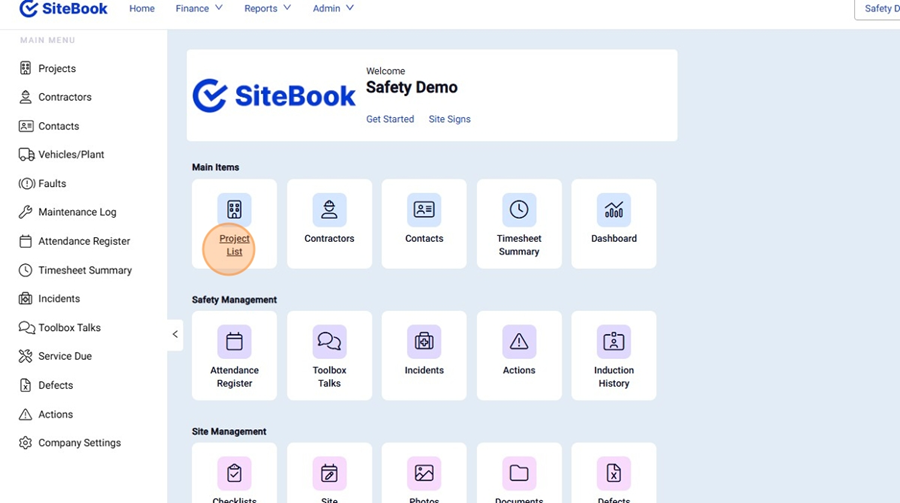
 Did this answer your question?😞😐😃
External Orders: How to load an External Purchase Order in SiteBook.
Updated over 4 months ago Table of contentsExternal Orders: How to load an External Purchase Order in SiteBook.
Navigating to a Project
1. Click "Project List" to open your Project List

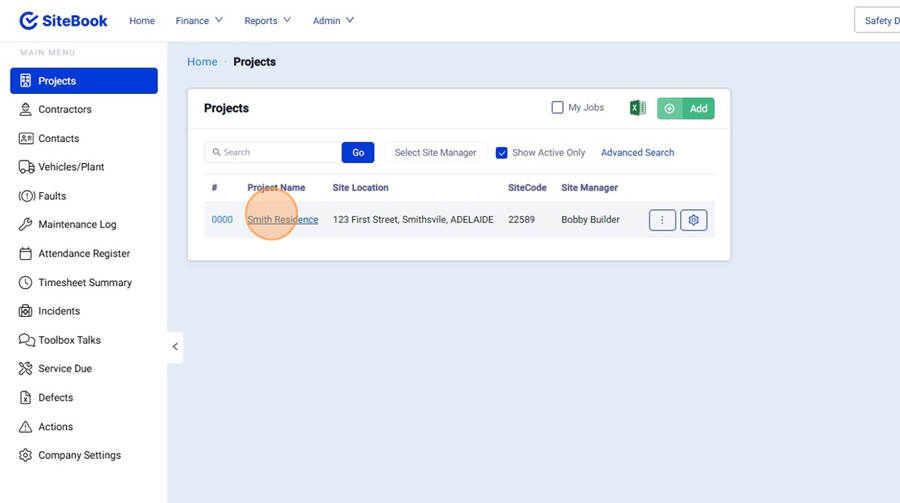
2. Select your Project from the List.

Adding an External Order against a Contractor
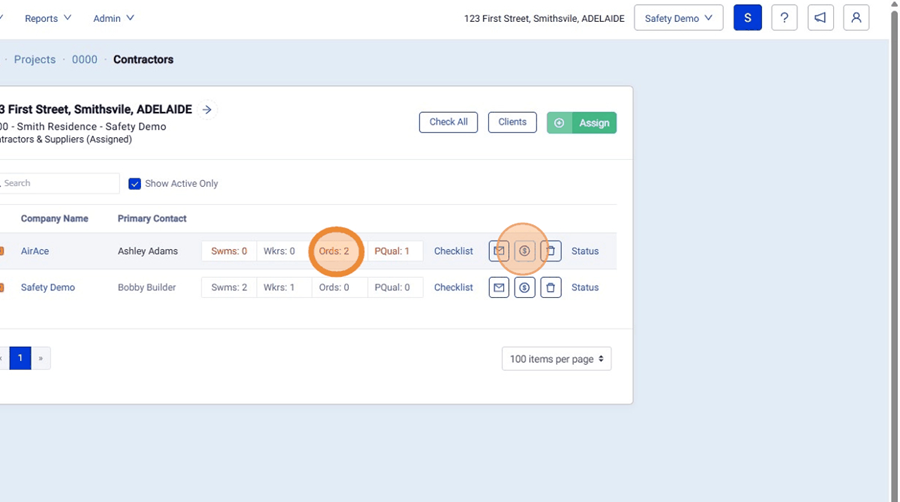
3. Click the $ Icon or the "Ords" section.

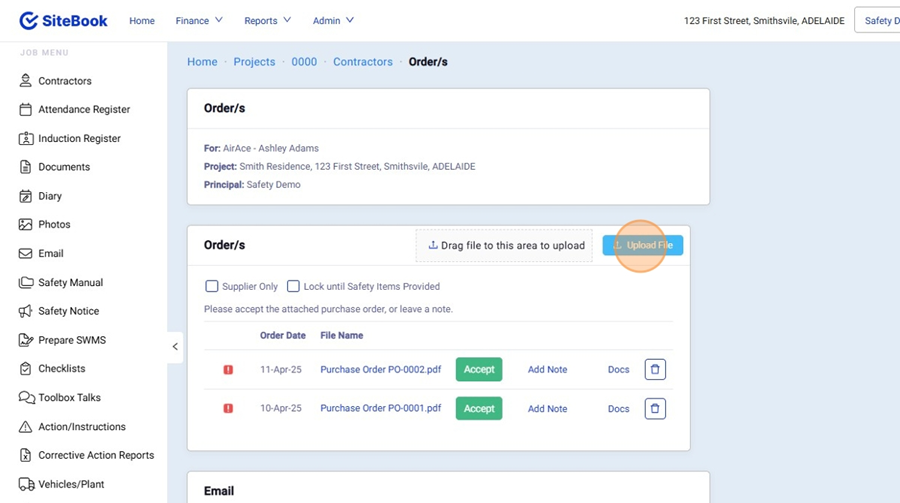
4. Click "Upload File" or you can Drag and Drop the file into the Upload box.

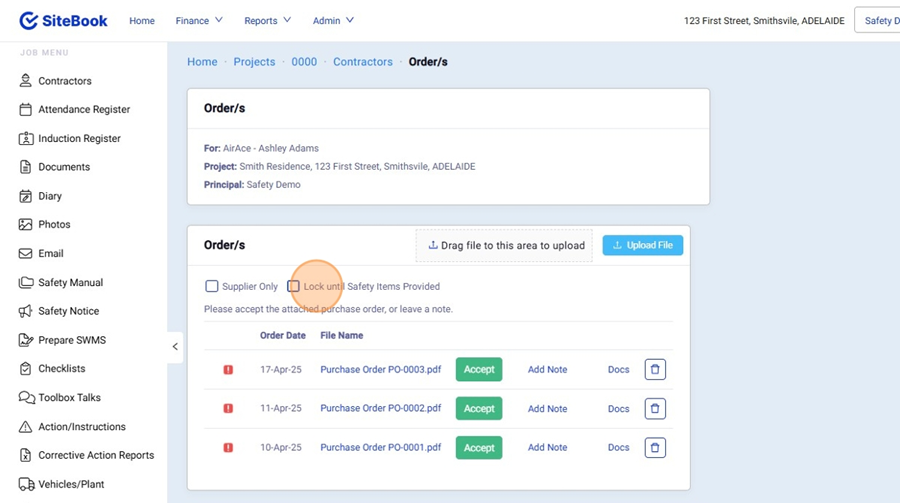
Lock Order Behind Safety
5. Click "Lock until Safety Items Provided".
This will Prevent the Contractor from accessing the Purchase order until after they have provided you their safety information during the Pre-Start Checklist.

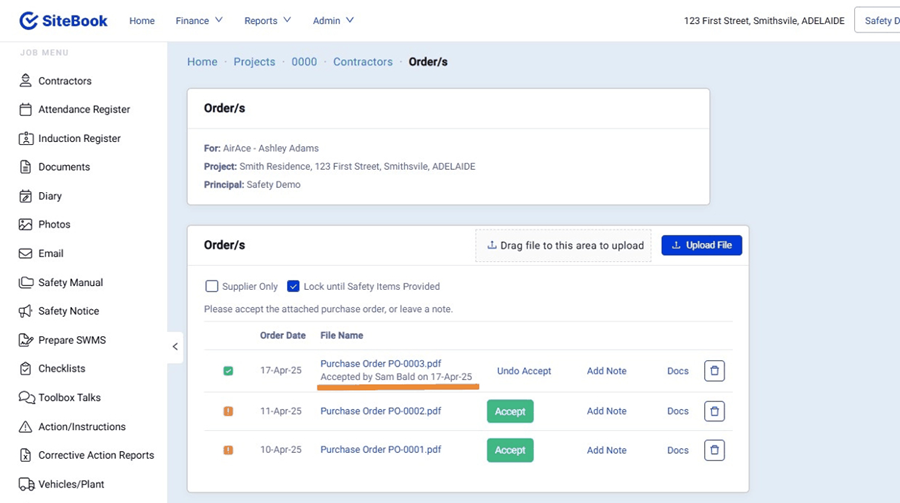
Accepted purchase Order
6. An Order is Accepted during the Pre-Start Checklist and the Status will be visible from the Orders Section.
 Did this answer your question?😞😐😃