
How to Create a Docket in SiteBook (MobileApp)
Updated over 6 months ago Table of contentsNavigating to the Dockets Menu
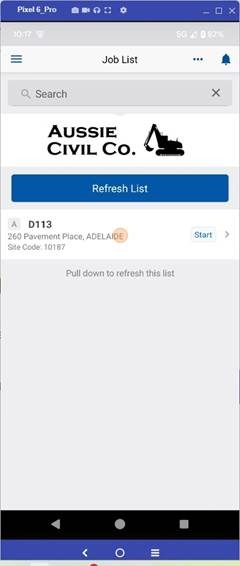
1. To Navigate to the Dockets Menu, select your Job from the Job List
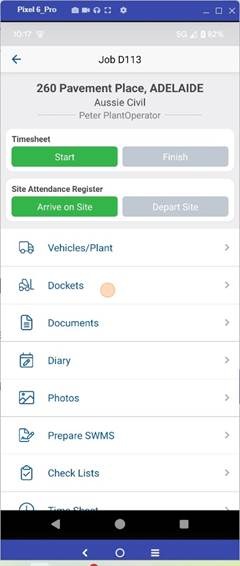
2. Select Dockets from the Menu Items.
Adding a new Docket
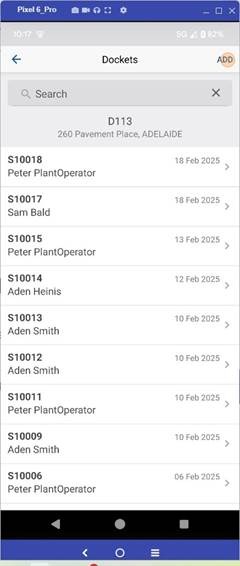
3. In the top right-hand corner, select "Add" to create a new Docket.
Editing a Docket
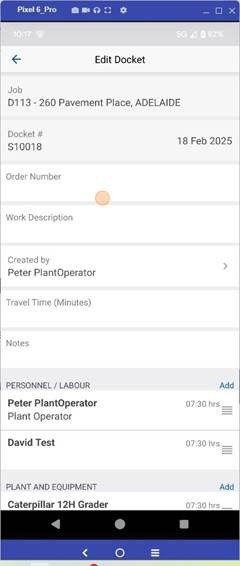
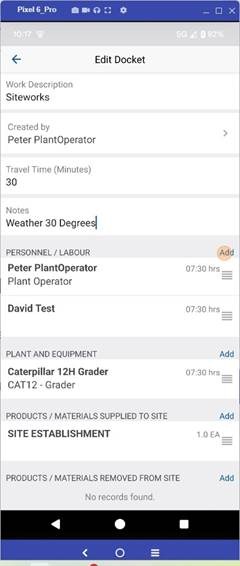
4. Enter the job details in the relevant fields.
Tip! (When configured as a Daily report / Day sheet the timesheet fields will be removed and a labour table added in its place to record all hours for one day on one site)
Personnel / Labour Table
5. Add Personnel / Labor from the "Add" Button.
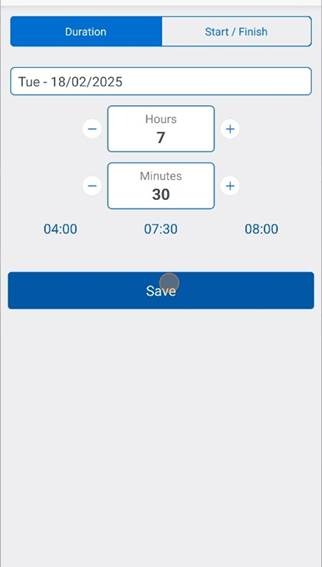
6. Hours for the Users can be added using Duration (Hours Only) or Start / Finish. (Time & Breaks)
Plant & Equipment
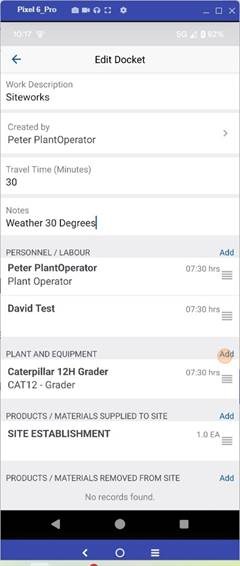
7. Add Plant & Equipment from the "Add" Button.
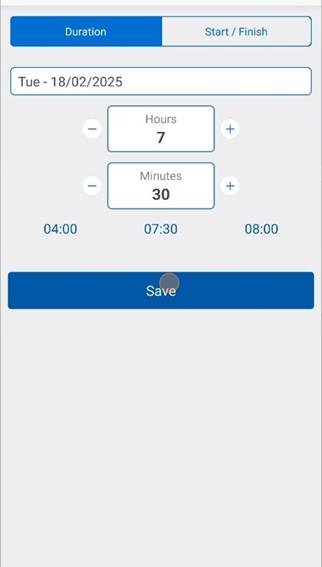
8. Hours for the Plant & Equipment can be added using Duration (Hours Only) or Start / Finish. (Time & Breaks)
Products
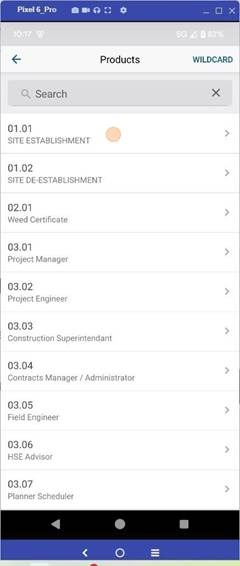
9. Add Products from the "Add" Button.
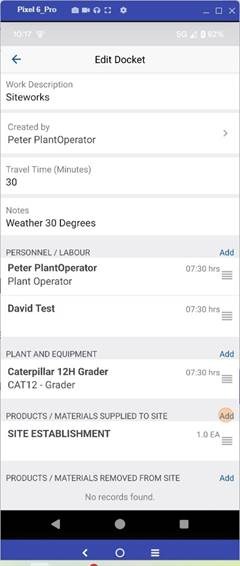
10. Select the Product/s from the Products list.
Invoices (Coming Soon!)
11. Add an Invoice from the "Add" Button.
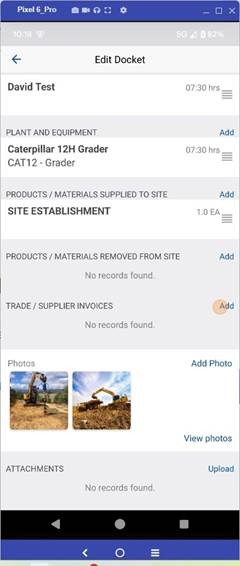
12. Add the Invoice Number, Amount and Description and upload the Invoice.
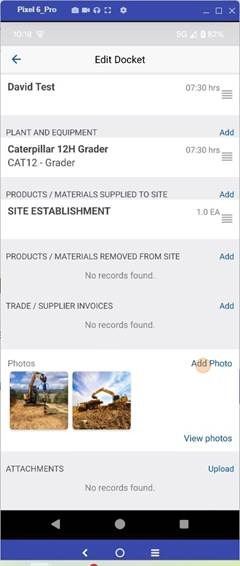
Photos
13. Add Photos from the "Add Photo" Button.
Attachments
14. click "Upload File" to select a file from your device.
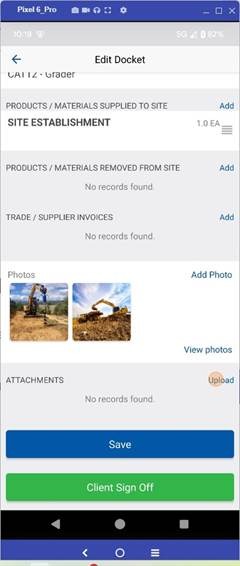
Client Sign-Off
15. Select "Client Sign-Off to add in the Clients representative name, company and signature.
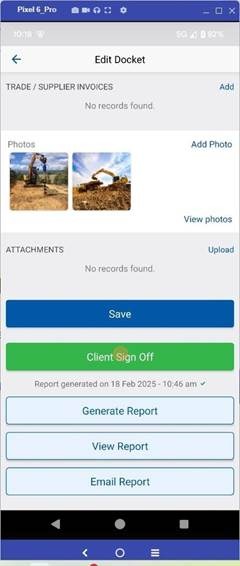
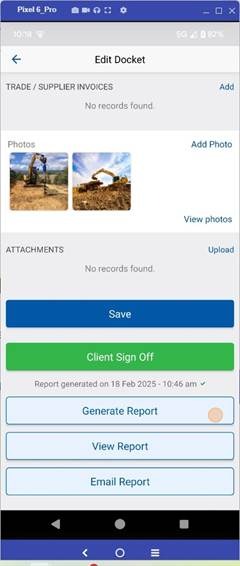
Generate Report
16. Select Generate Report to create a PDF of the Docket.
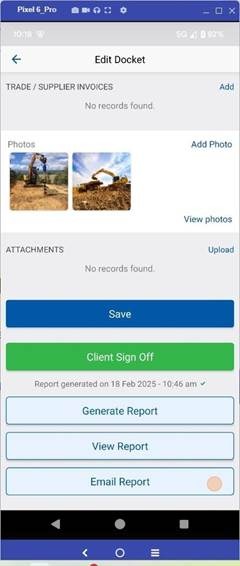
Email Report
17. Select Email Report to email a copy of the Docket to a person/s.
 Did this answer your question?😞😐😃