
Table of contents
How to Create an ETS / Variation Order in SiteBook (WebApp)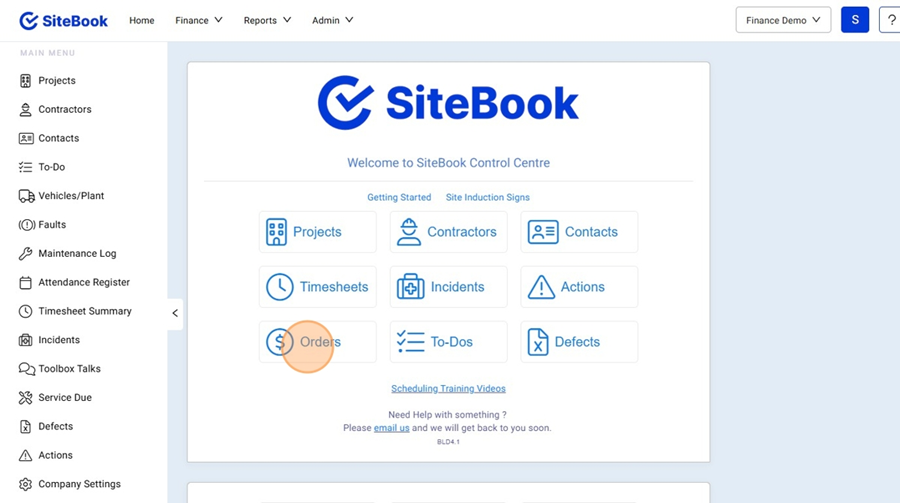
How to Create an ETS / Variation Order in SiteBook (WebApp)
Updated over 3 months ago Table of contentsHow to access the Orders page.
1. Click "Orders" from the home page

How to create a new Order
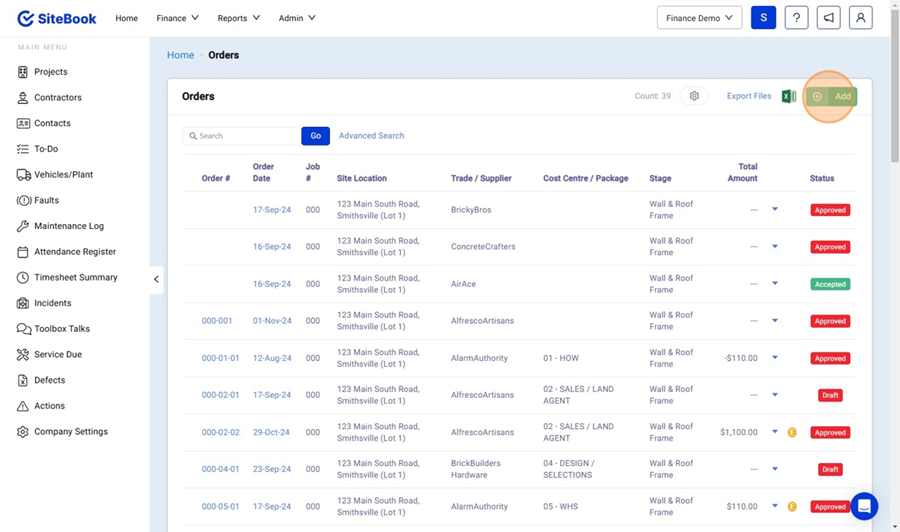
2. Click "Add" in the top right corner to create a new order.

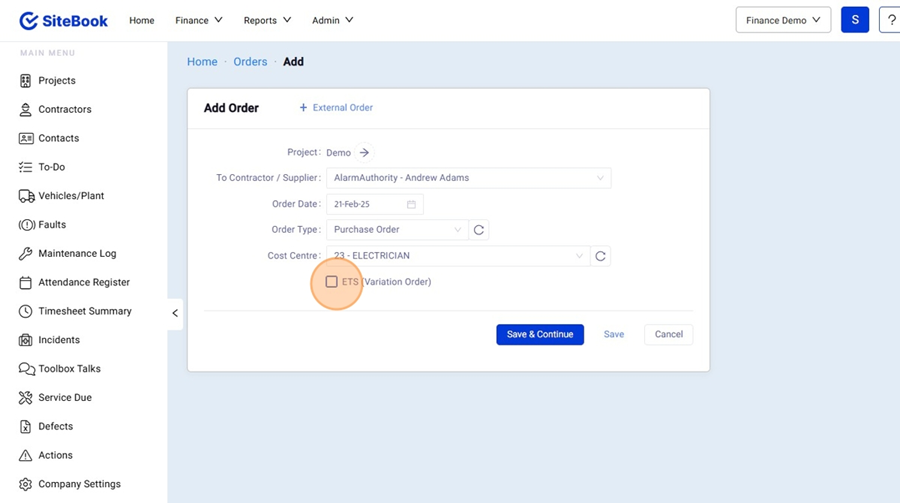
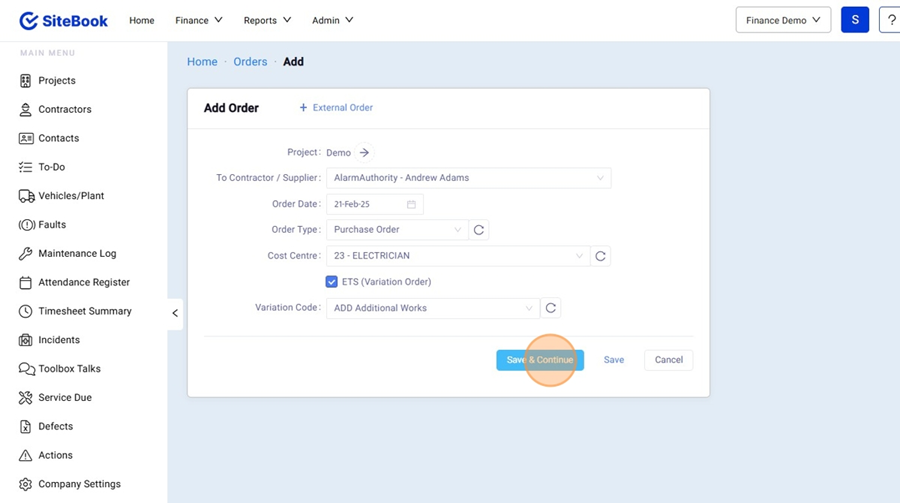
3. Add the Project Details and tick "ETS (Variation Order)"

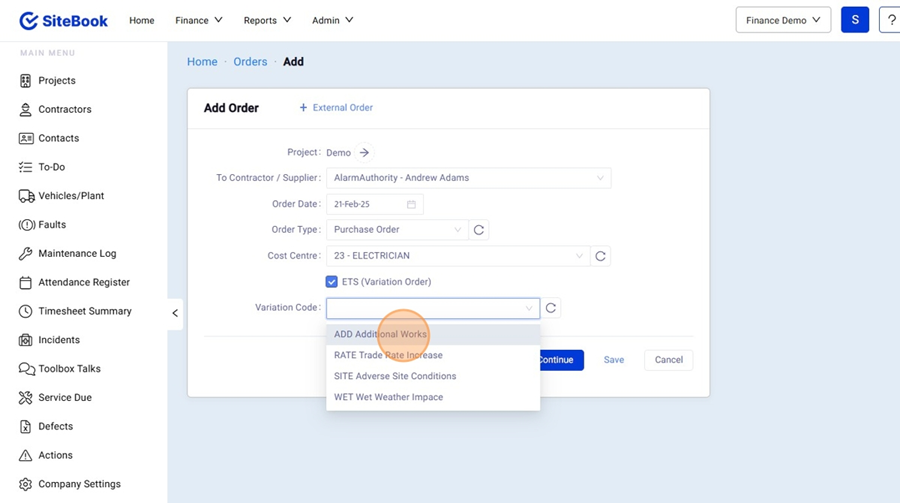
4. Select a Variation code from the picklist.

5. Click "Save & Continue"

Adding Line Items to an order
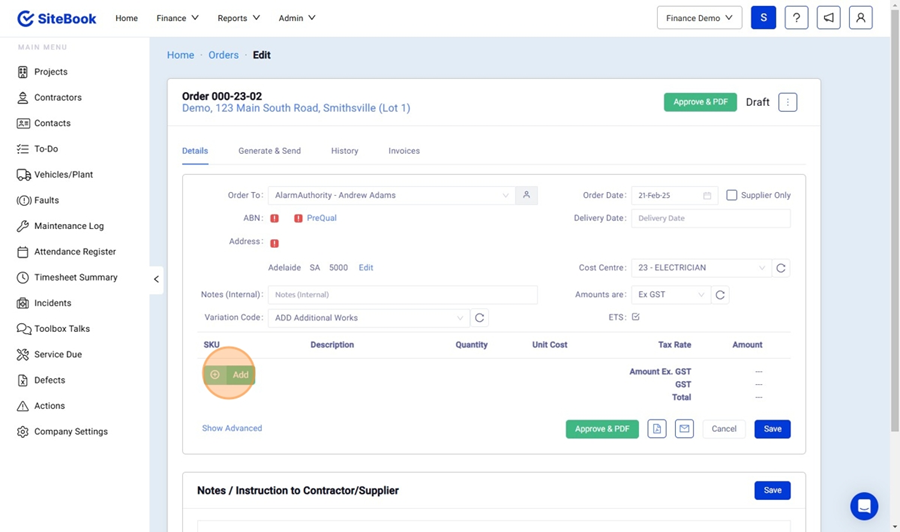
6. In the Order, click "Add" in the bottom left corner to add a line item.

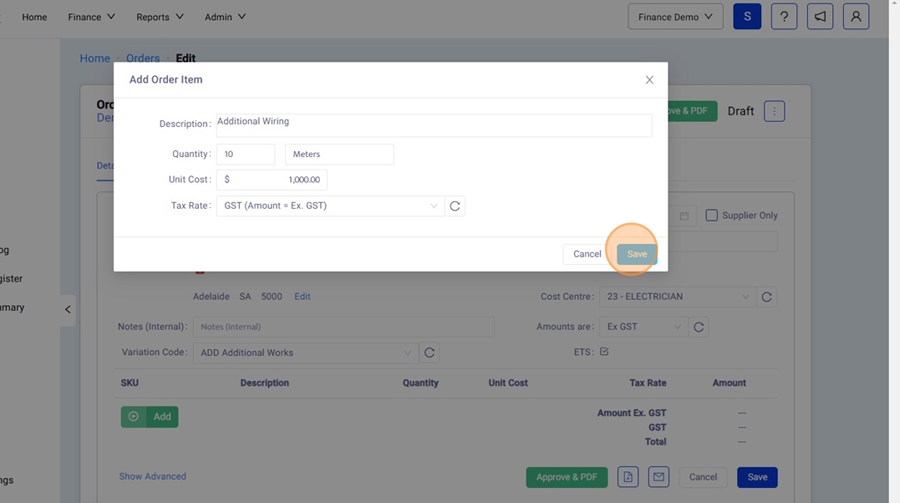
7. Add the line item details and click "Save".

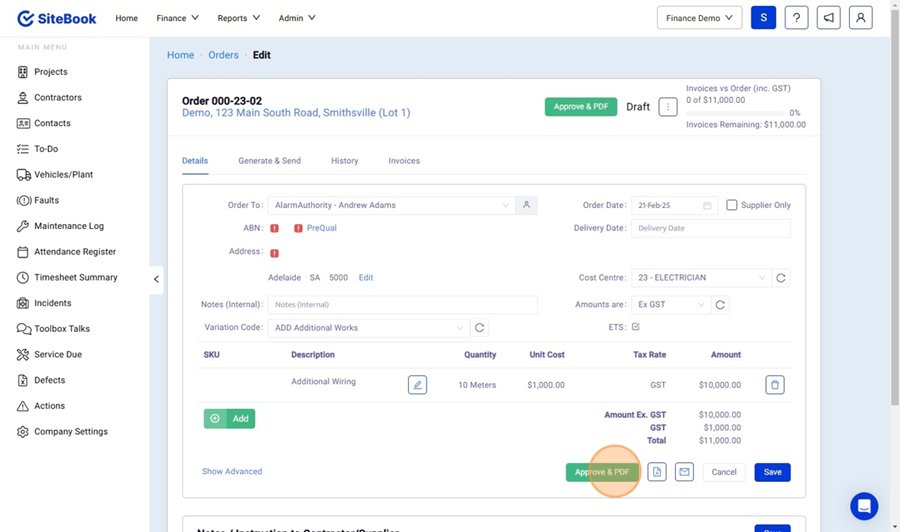
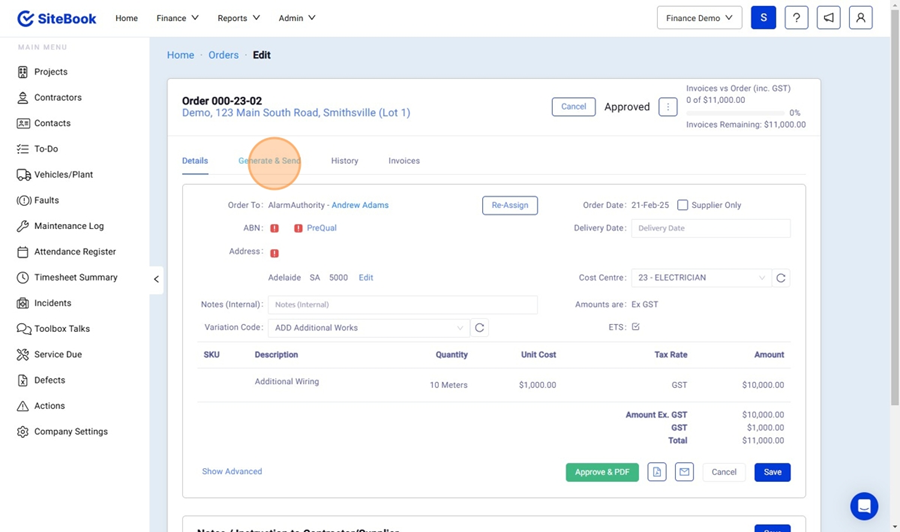
8. Click "Approve & PDF" (This will create the Order and it will be available in the Contractors Portal)

View & Email the Purchase Order
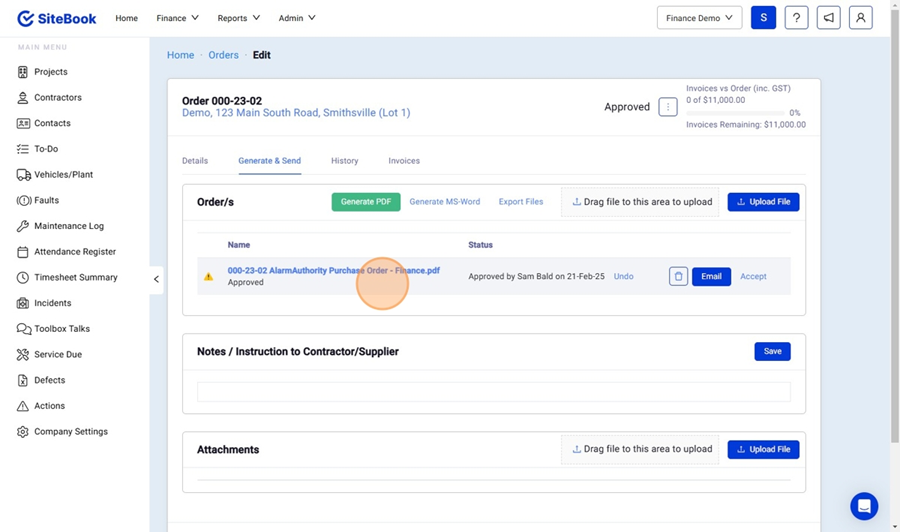
9. Click the "Generate & Send" Tab to view the Purchase order PDF and Email a notification to the Contractor.

10. Click the Purchase Order name to view the PDF.

11. Click "Email" to Email the Order to the Contractor.
Did this answer your question?😞😐😃