
Setting up Induction SWMS for Projects
This guide will show how to allow Contractors to submit SWMS for their induction.
Updated over 3 weeks agoNOTE: It is recommended to apply Induction SWMS to the Project Template, this will ensure that all Projects that have used the template will have the same settings. Projects that have already been created will need to manually be set.
To set it for a Project Template, simply go to Admin > Project Templates > Click the template in question and continue to Step 3.
Click "Projects"
Click "Projects"
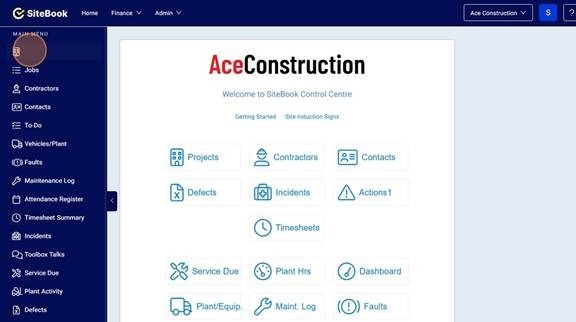
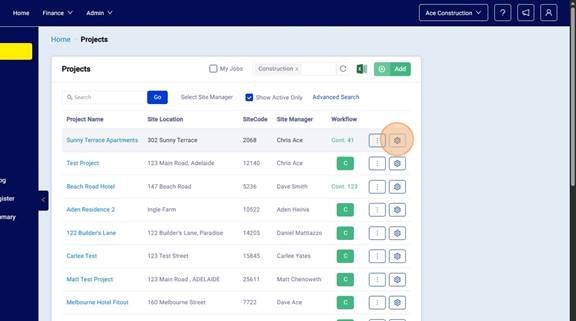
2. Navigate to "Project Setup"
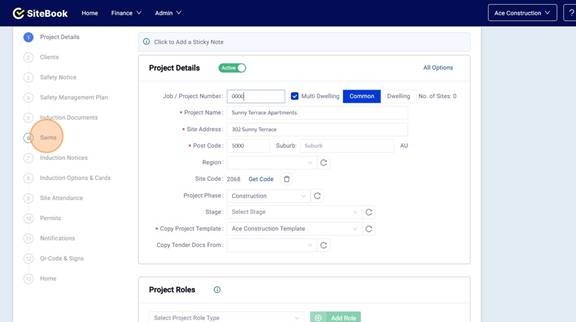
3. Click "SWMS"
4. Click the "Ask about High Risk Work (Yes/No)" field
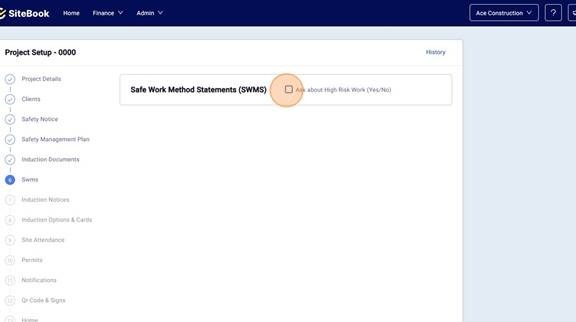
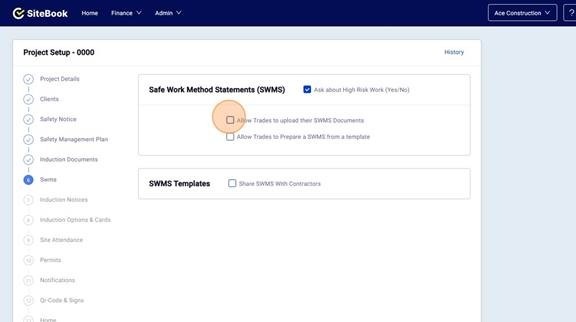
5. Click the "Allow Trades to upload their SWMS Documents" field
This will allow Contractors assigned to the Project to upload a file as their SWMS
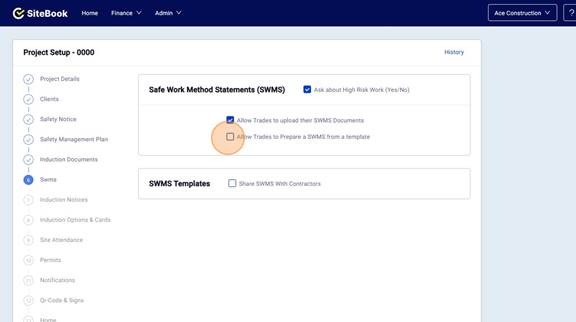
6. Click the "Allow Trades to Prepare a SWMS from a template" field
This will allow Contractors assigned to the Project to use one of your templates, but you must provide one first in the next step.
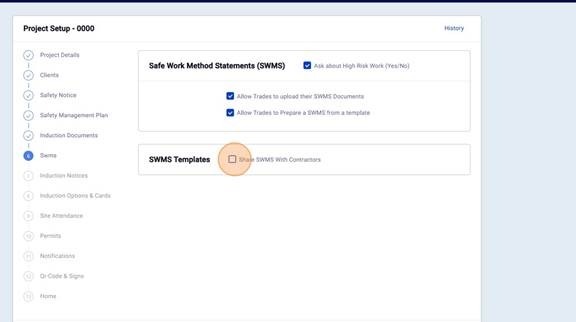
7. Click "Share SWMS With Contractors"
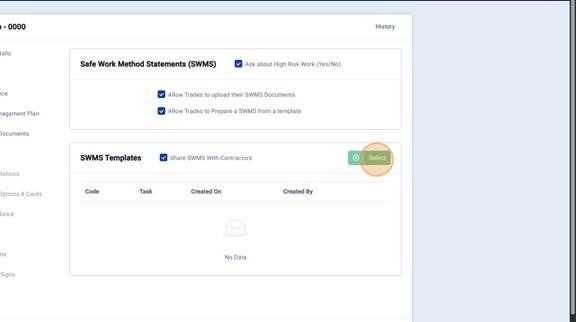
8. Click "Select"
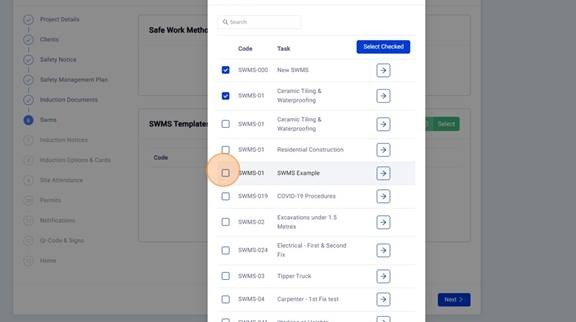
9. Click the checkbox of the SWMS you wish to share with your Contractors, click multiple to select more
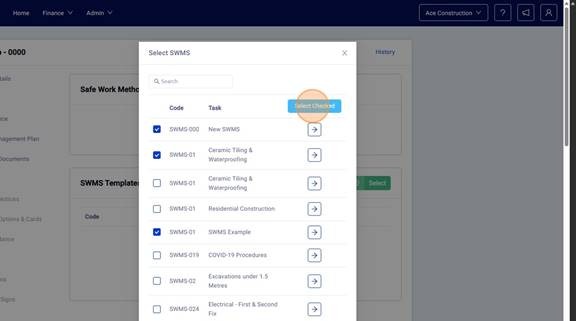
12. Click "Select Checked" to add all the selected SWMS to be shared
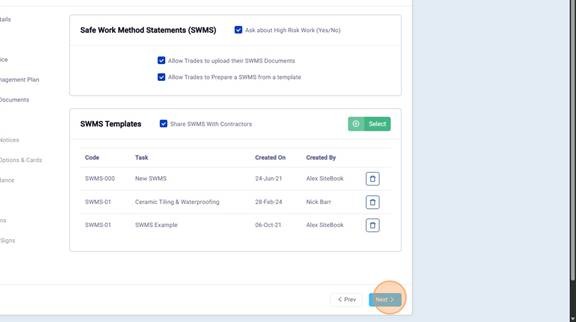
13. Click "Next" to save the settings
The Contractor will then see a "SWMS" in their induction items.


Clicking "Prepare a SWMS from a Template" will display the SWMS that was shared.

The Contractor can then select the templates provided and generate a report and it will be added to their Induction items to be reviewed by the Principal Contractor.
Did this answer your question?😞😐😃