
Adding an Asset to the Service Due Register
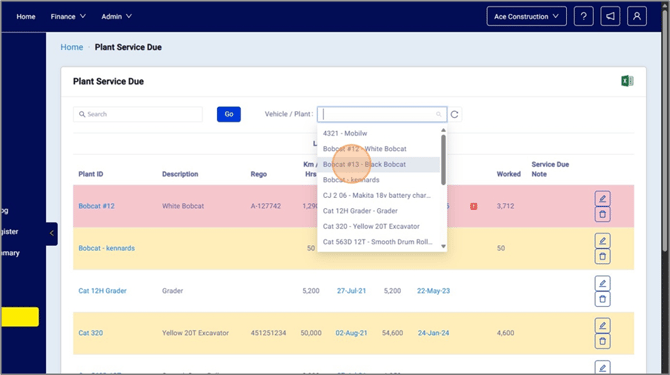
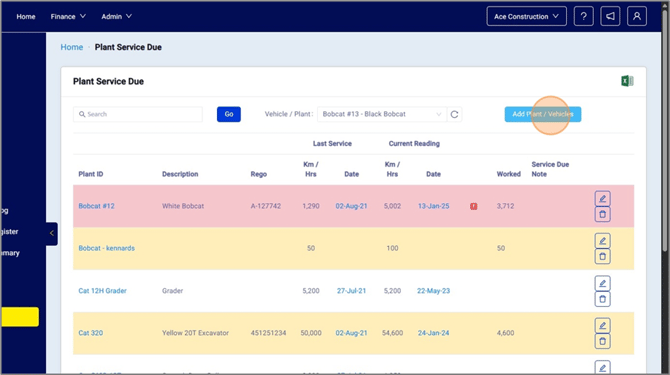
1. On the Home Screen, Click the “Service Due” on the left menu. Click the “Vehicle / Plant”: field to make a drop-down list of assets appear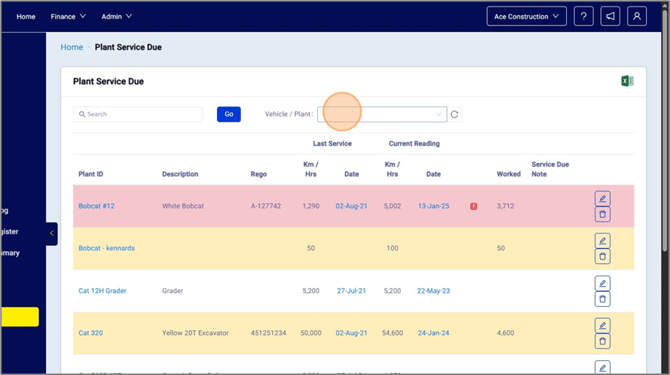
Configuring Service Due settings for the Asset
1. You will be brought to the Service Due record for the asset, the following fields must be manually setLast Service At (Km / Hrs):
Last Service Date:
Service Due After (Km / Hrs):
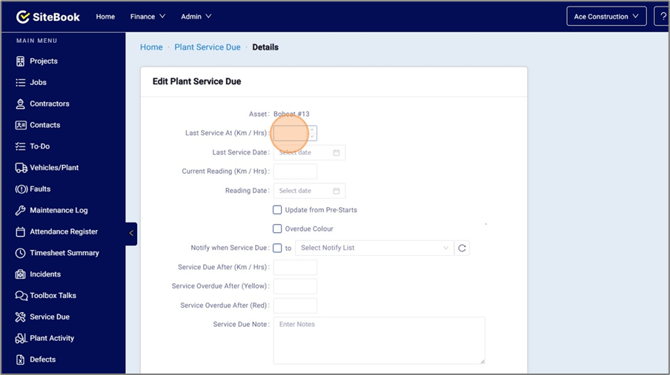
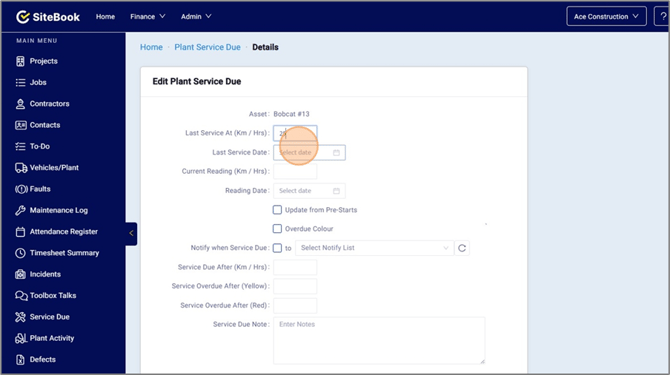
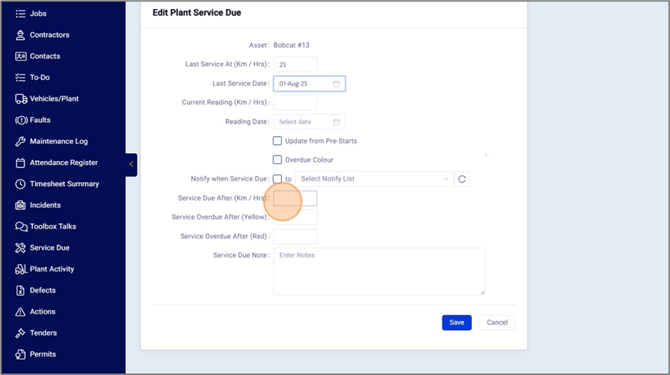
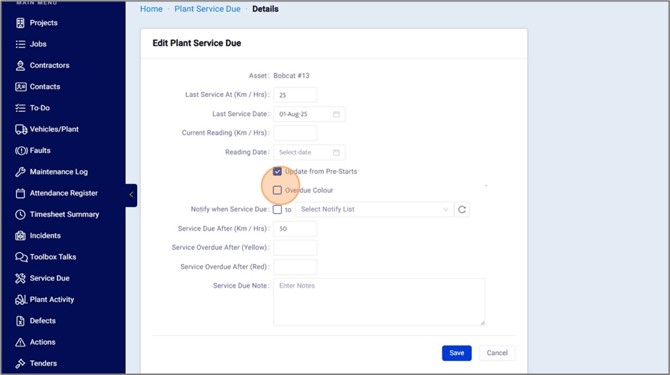
2. For this example, we will add "25", “Aug 1 2025”, and “50” respectively
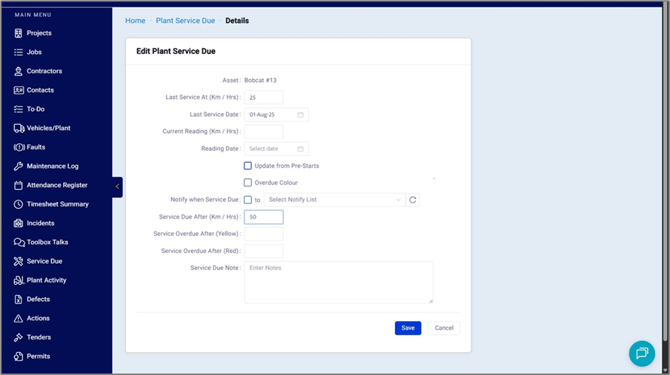
3. Click the "Update from Pre-Starts" field, this will allow pre-starts with readings to update the “Current Reading (Km / Hrs):” and the “Reading Date:”
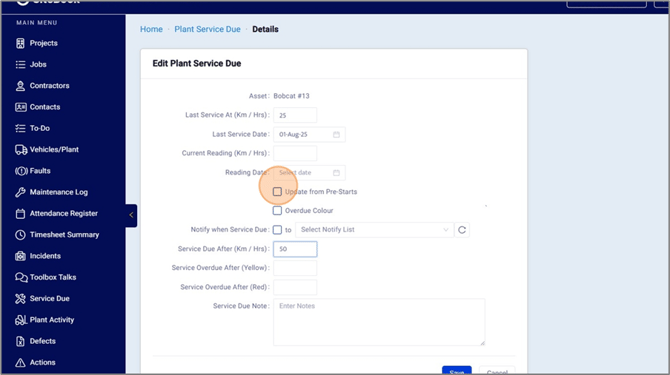
4. Click "Overdue Colour", this will allow the Service Due to change color when the asset is Due
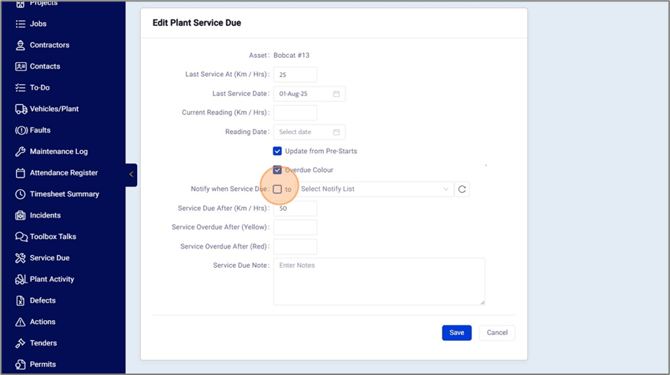
5. Click “Notify when Service Due” then select a Notify List, this will send an Email and SMS to the persons added to the Notify List
NOTE: The persons on the Notify List must have Email or SMS ticked, this does not work for roles added to the Notify List
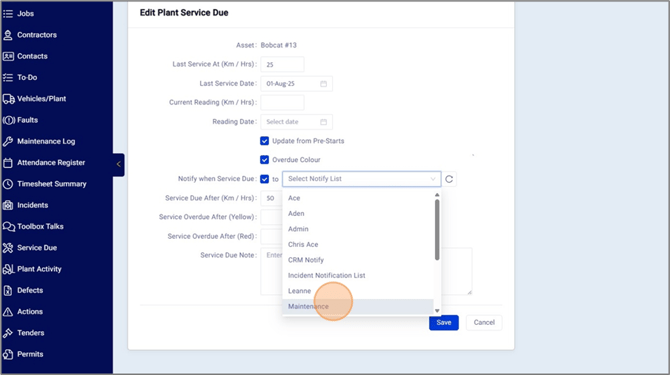
6. For this example, we will use the Notify List "Maintenance"
Updating of Km/Hrs
1. When a pre-start with the readings turned on, the worker can add the Km / Hrs as the reading
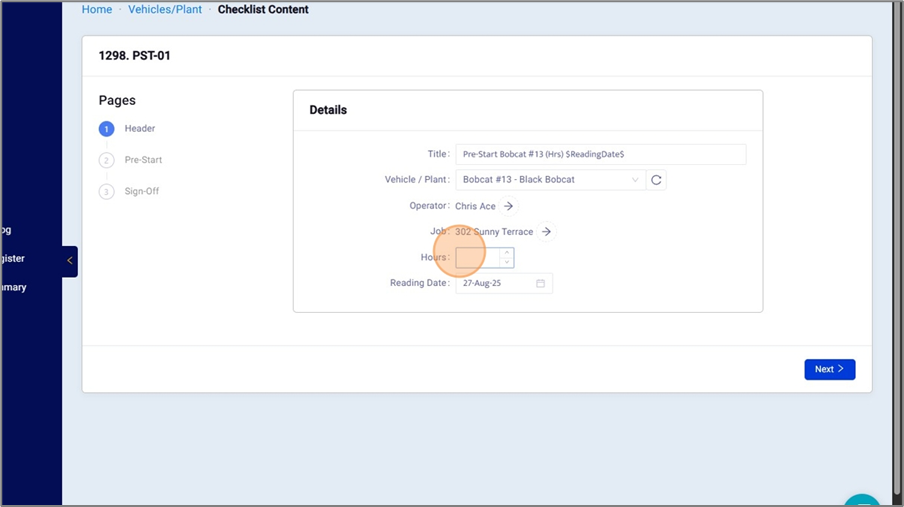
NOTE: Assets should only have Km or Hrs, not both
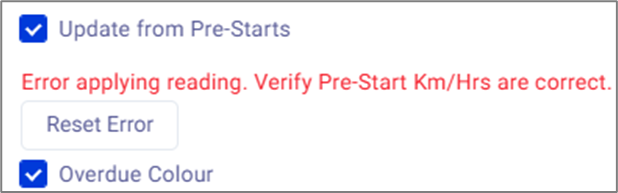
NOTE: When a red tick or error appears on the Service Due Register, this is caused when the most recent pre-start has Km/Hrs lower than the previous reading. Click the "Reset Error" so the Register will ignore the latest reading of the Asset.
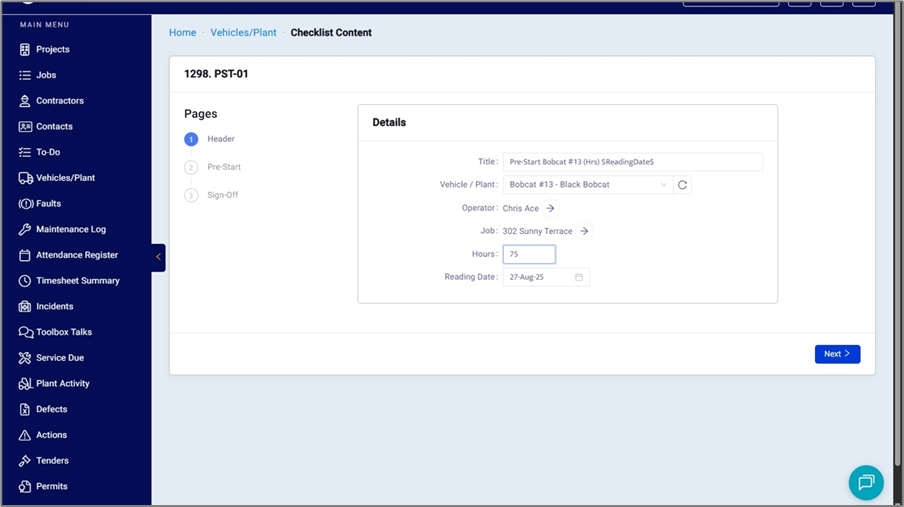
2. For this example, we will put "75"
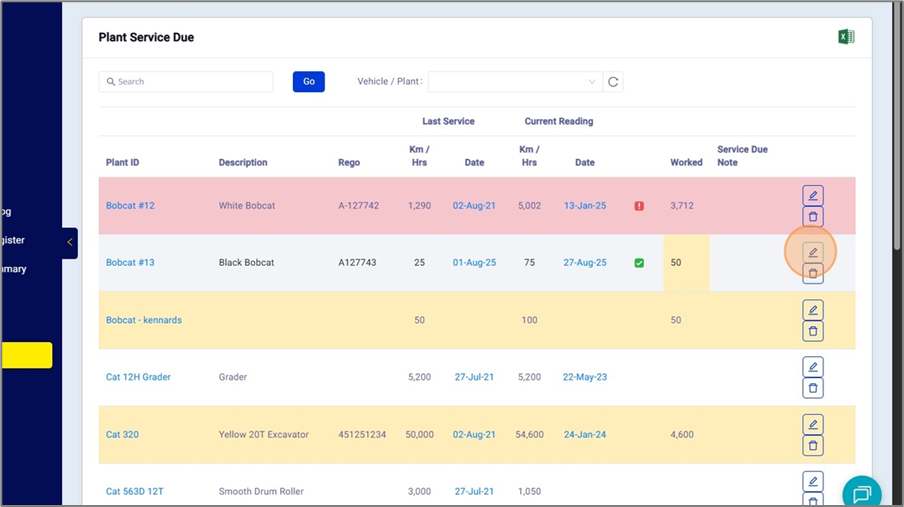
3. Back at the Service Due Register, you will see the “Worked” column for the asset is in yellow, this means that a Email or SMS will be sent to the Notify List overnight and the "Current Reading (Km / Hrs):" has been updated according to the latest Checklist
Additional Fields:
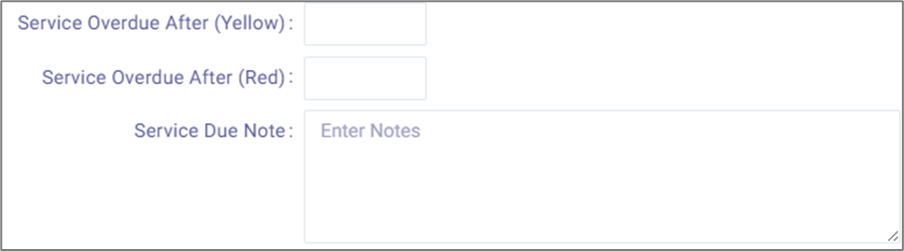
Service due after yellow - When the Current Reading exceeds this number, this will make then entire row of the asset yellow
Service due after red - When the Current Reading exceeds this number, this will make then entire row of the asset red
Service due note - Note for the asset in the Service Due Register